
Material Test
Every material is different. Below is a series of files you can download and use to test and log material settings for your CO2 laser system — one for raster engraving, one for vector cutting, and a downloadable test log to keep track of your best results.
There are no exact settings that work universally with a laser: tube output varies with age, and even the same material behaves differently under different atmospheric conditions. The tests below let you dial in the right combination of power and speed for your specific machine and material.
Downloads
 Raster Test (.re3)
 Material Test Log (PDF)
Instructions
Before you begin: this process will take a little extra time and use extra material, but the final results will save you that time on every future project.
- Extra material (use scraps if possible)
- The test file (download linked above)
- The Material Test Log (download linked above)
- Your laser cutter and engraver
Raster Test
- Start your laser and load RetinaEngrave v3.0 on your computer.
- Load the
.re3raster test file by selecting File › Load Project from File... - Place your material in the laser and use the Run Perimeter function in RE3 to make sure it is properly positioned (or use the camera if you have one).
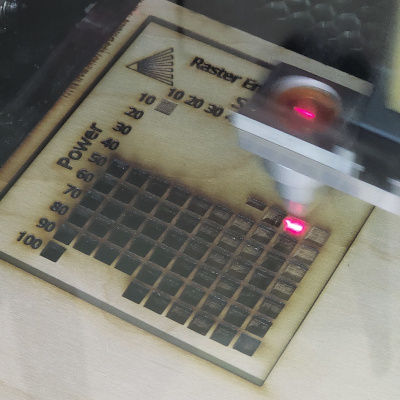
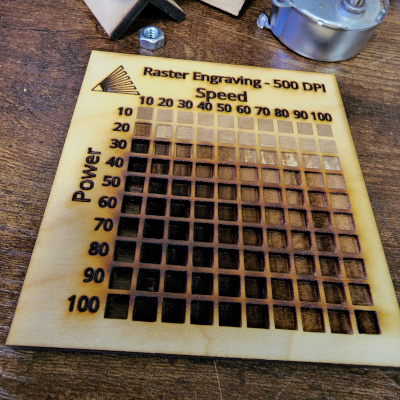
- Close the lid, make sure water and air assist are running, then start the job. The settings are already pre-programmed in the file, so it will use each variance as it hops from square to square. Make sure you disable vector sorting in the settings so it runs in the order organized in the file.
- Once the laser has finished, examine the results to pick the ideal settings for your material. Log this information using the Material Test Log above.
Vector Test
- Start your laser and load RetinaEngrave v3.0 on your computer.
- Load the
.re3vector test file by selecting File › Load Project from File... - Place your material in the laser and use the Run Perimeter function in RE3 to make sure it is properly positioned (or use the camera if you have one).
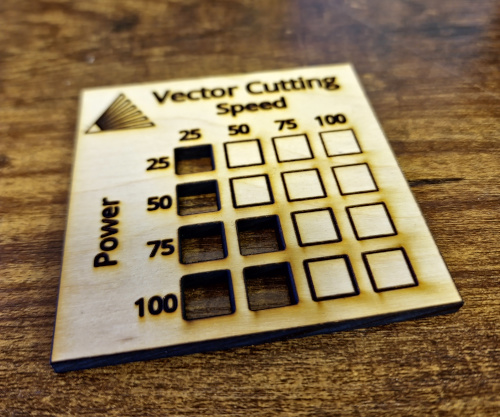
- Close the lid, make sure water and air assist are running, then start the job. The settings are already pre-programmed in the file, so it will use each variance as it hops from square to square. Disable vector sorting in the settings so it runs in the order organized in the file.
- Once the laser has finished, examine the results to pick the ideal settings for your vector cuts. Look at the front of your material and find the cut that went all the way through with minimal charring on the edge. Then flip the material over and look at the back to find the one with the least amount of flashback. If multiple options are close, pick the combination with the highest speed and lowest power.
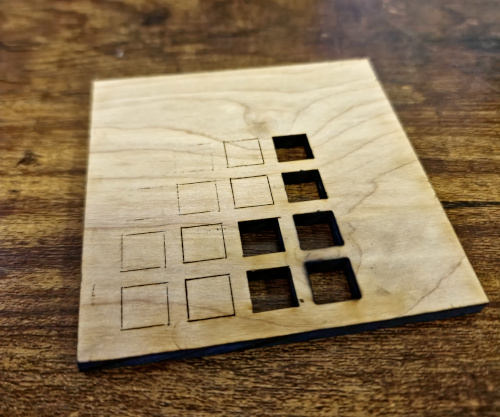
Log this information using the Material Test Log above. To reduce charring on the cut, you can also adjust your current settings.