
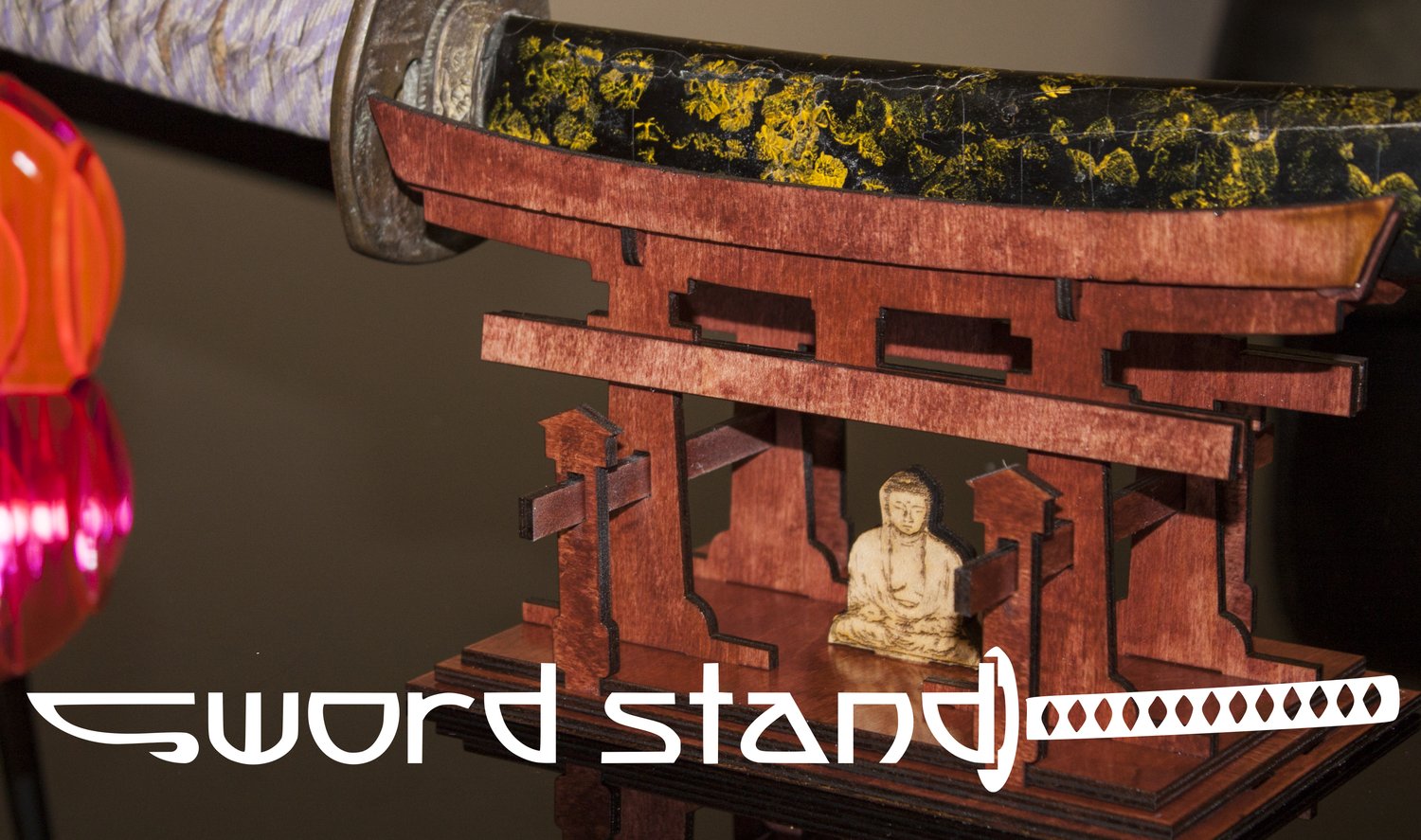
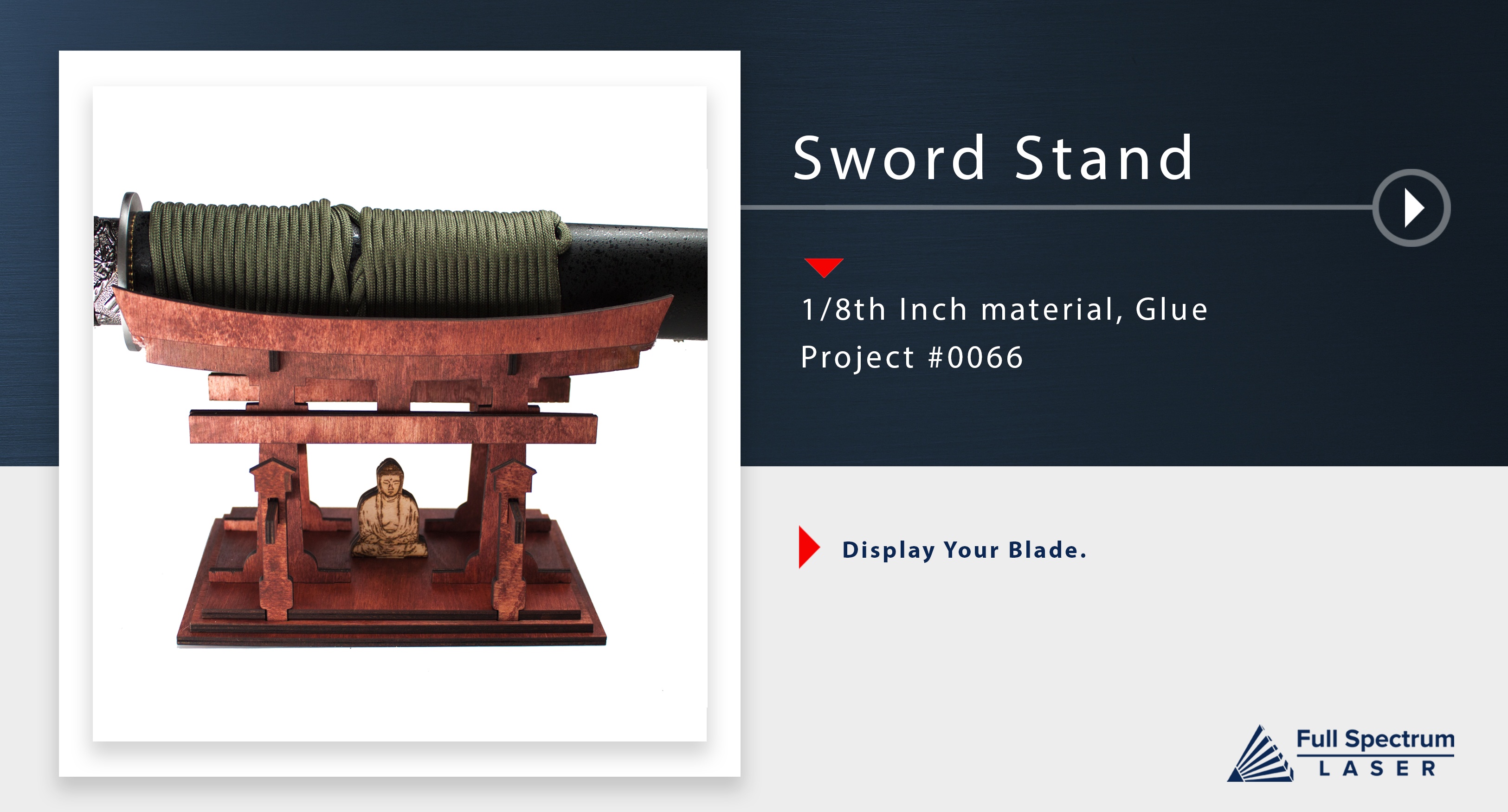
Sword Stand
Display Your Blade

- Safety First: Ensure workspace is free of fire, electrical and other safety hazards. Be aware of all safety issues when cutting materials with a laser. Always have a fire extinguisher on hand
- Power on the laser and all of its components.
- Ensure that:
- The laser is powered and the boot up cycle begins on the screen.
- The cooling system is connected properly and water is flowing through the tube.
- The air compressor is powered and exhausting air to the laser head.
- The exhaust system is on and vented into a safe location. - Connect to RetinaEngrave 3.0 software using your machine’s touch screen to copy the software IP address into your favorite browser. The Wired IP address is displayed at the bottom of your touch screen.
- Import your design and adjust power and speed settings. Double check settings including the number of passes and cut order.
- Insert material into the laser bed. Use the focus tool to adjust to the top of the material. Focusing should be done each time a new material is introduced.
- Use the “Perimeter” function to ensure that the file will fit within the cutting area. Adjust accordingly.
- Run the job file. Do not leave a job running unattended.
CUT
Import the included files and cut all the pieces from their respective materials. This file contains vector cuts and engravings.
First you will want to start by stacking the platform.
Then you will want to insert the two main parts of the structure into the base.
Now notch the four smaller pilars in place.
Once all pilars are in the platform you can slide the two cross members into place.
Now add the crossmembers ontop of the sword stand. One notches while the other slides into place.
Put the two figures back to back and notch them into the base
The four left over pieces do not have notches and need to simply be glued into place to add dimension to your new sword stand.
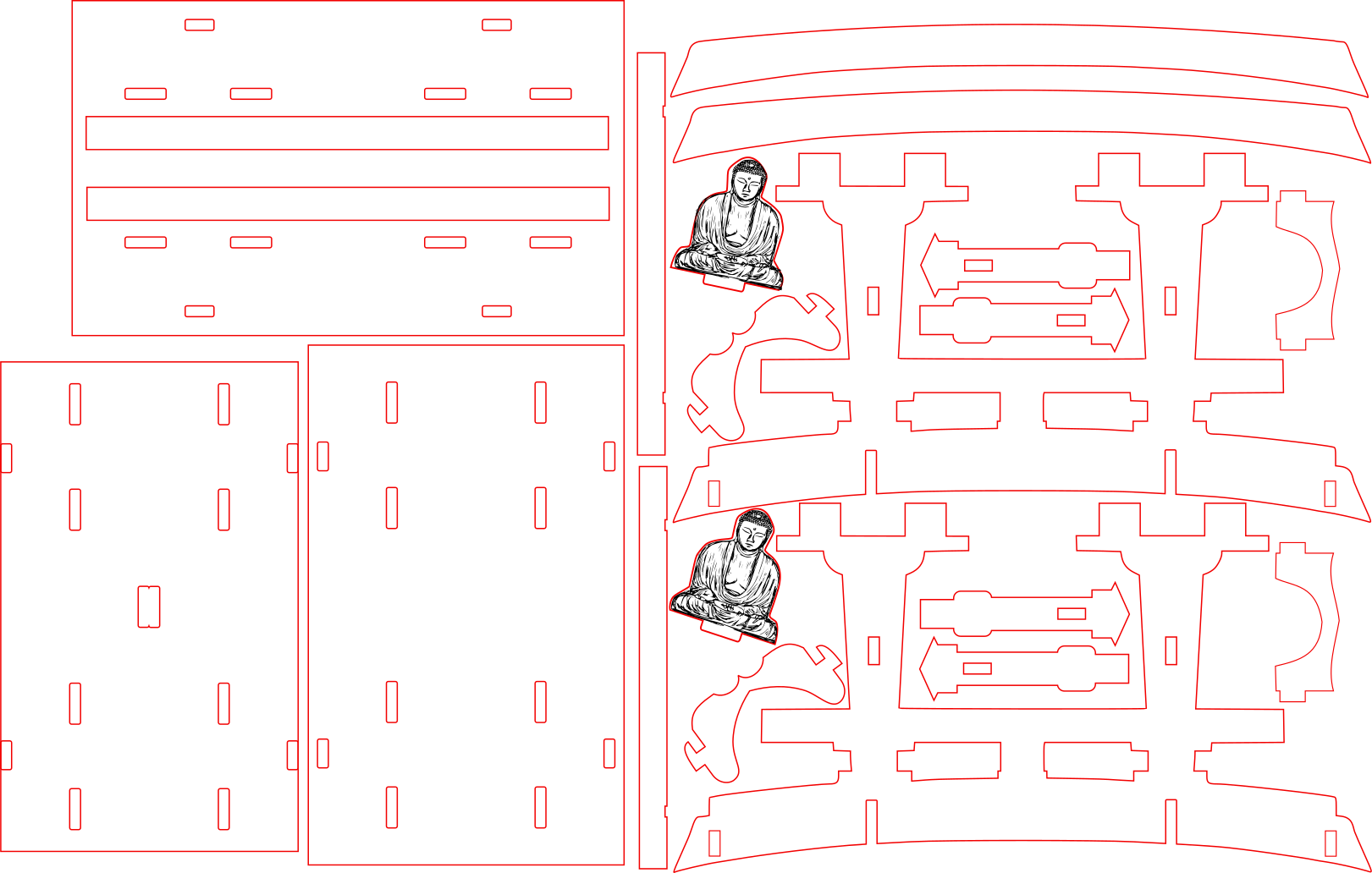
Difficulty: ★★☆
Minimum Requirements: 40W
Raw Materials: 1/8 Inch Wood
Optional: Paint or Stain
Estimated Laser Time: 12 Mins
Project Files Below ▼